
Download MetaTrader 5
Choose the MT5 terminal for Windows, macOS, Linux, Web, iPhone, iPad or Android


The desktop terminal provides the full MT5 environment for charts, Market Depth, MQL5, Expert Advisors and Strategy Tester. Windows runs the Client Terminal directly; the macOS installer configures Wine automatically; Linux also runs MT5 through Wine. WebTerminal works in a browser, while iPhone, iPad and Android provide mobile account access. Symbols, prices and trading permissions always come from the connected broker server and account.
MetaTrader 5 for Windows, macOS and Linux
The desktop terminal is the full MetaTrader 5 environment for charts, Market Depth, order and position management, MQL5 applications, Expert Advisors and Strategy Tester. MetaTrader 5 currently runs on Windows 10 and Windows 11. The macOS installer automatically downloads and configures Wine, while Linux also runs the desktop terminal through Wine.
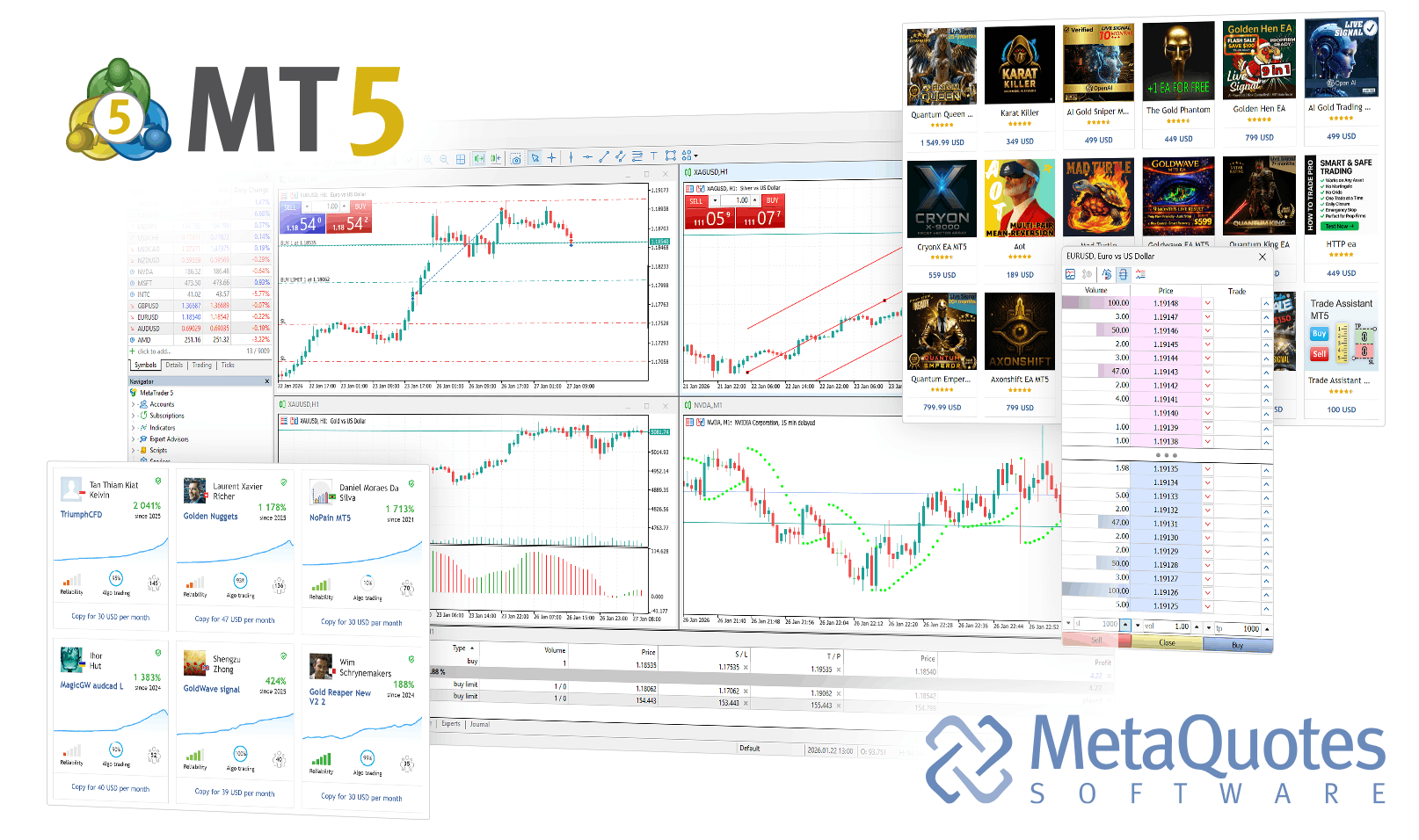
What the MetaTrader 5 desktop terminal includes
Desktop MT5 is the primary environment for local MQL5 development, Expert Advisor execution, backtesting and optimization.
- Open multiple charts, symbols and timeframes in one desktop workspace
- Use Market Depth, market orders, pending orders and position controls
- Work with built-in and custom indicators, analytical objects and templates
- Run Expert Advisors, custom indicators and scripts written in MQL5
- Create and debug MQL5 programs with MetaEditor
- Backtest, optimize and forward-test Expert Advisors in Strategy Tester
- Store local profiles, templates, logs and terminal data files
- Connect the trading account to its matching broker server
- Use local automation directly or through a compatible virtual hosting environment
- Actual instruments, prices and execution conditions remain broker-controlled
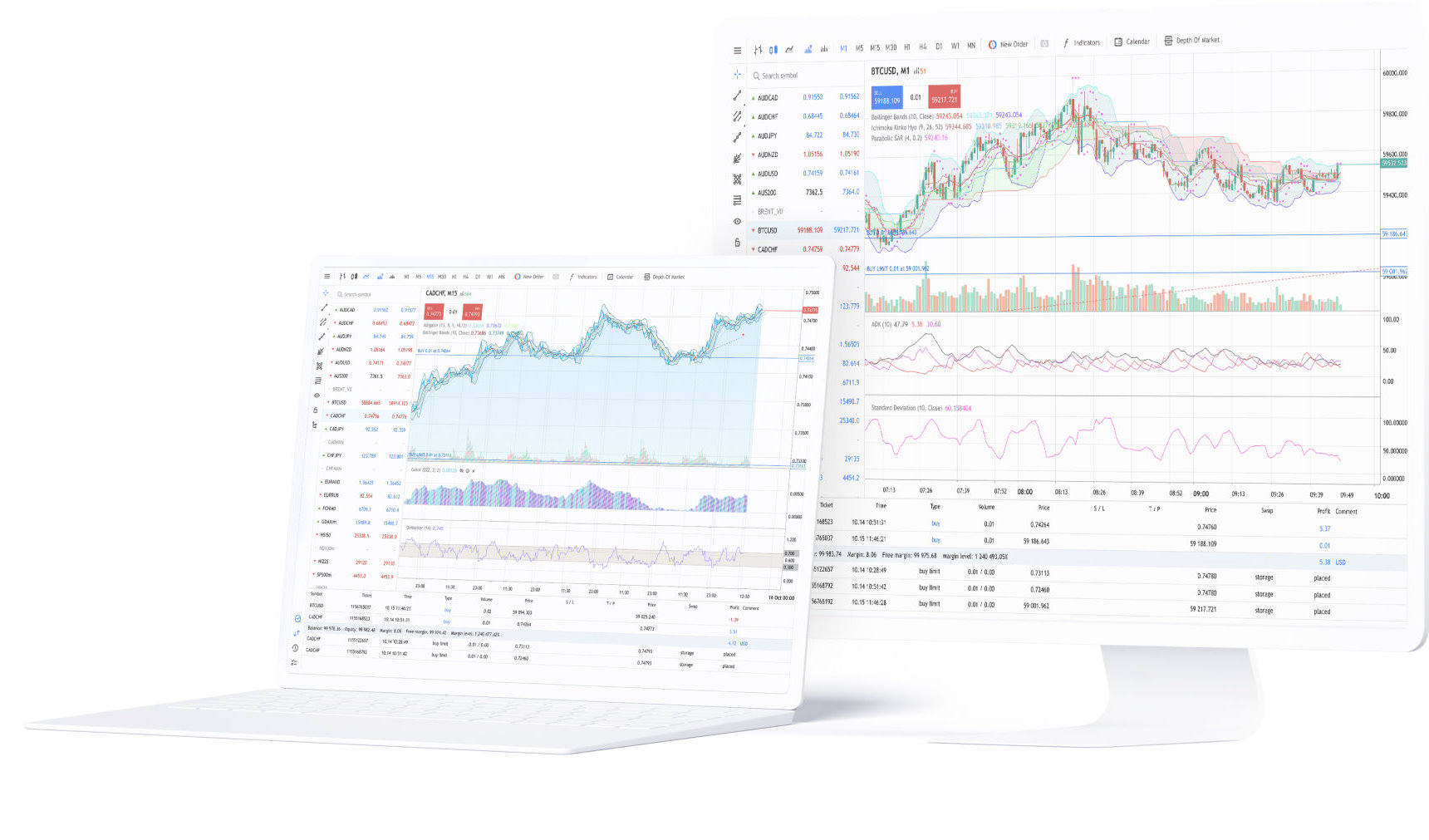
When to use MetaTrader 5 WebTerminal
WebTerminal provides browser-based trading without installing the desktop terminal.
- No Windows or macOS desktop installation is required
- Runs in a supported desktop or mobile browser
- Provides quotes, charts, Market Depth, orders, positions and account data
- Includes 9 chart timeframes, 30 technical indicators and 24 graphical objects
Install MetaTrader 5 on Windows 10 or 11
- Download and run the MT5 Windows web installer; required components are downloaded during setup.
- After the terminal starts, connect an existing live or demo account with the correct login, password and broker server.
- If you maintain multiple terminal installations, confirm the program and data folders used by each instance.
Install MetaTrader 5 on macOS
- Use the dedicated macOS installer; it identifies the system, downloads and configures Wine, and then installs MetaTrader 5.
- The current minimum macOS version is Catalina 10.15.7, with support for modern Apple processors.
- After launch, connect the broker server assigned to the account and confirm that quotes, symbols and account data load correctly.
Connect MetaTrader 5 to a broker account
Installing MetaTrader 5 installs the terminal only. A live or demo trading account is a separate account environment and requires the matching login, password and broker server.
- Open the desktop terminal, WebTerminal or mobile application.
- Select the existing-account login and choose the broker server assigned to that account.
- Enter the account login and corresponding password.
- After connection, verify quotes, visible symbols, account status and trading permissions.
MetaTrader 5 mobile terminals for iPhone, iPad and Android
MetaTrader 5 for iOS and Android connects supported smartphones and tablets to broker accounts for quotes, charts, Market Depth, orders, positions and trading history.
Mobile terminals are not desktop replacements: MQL5 development, MetaEditor, local Expert Advisor execution, Strategy Tester and optimization remain desktop functions.
MetaTrader 5 for iPhone and iPad
The iOS terminal provides mobile access to supported broker accounts, real-time quotes, charts, indicators, Market Depth, orders, positions and account history.
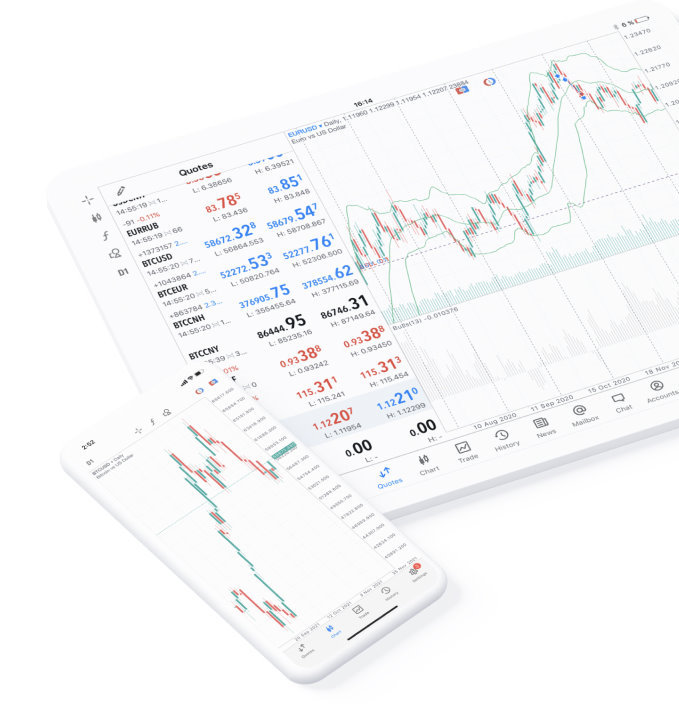
Use the mobile app for account monitoring and trading away from the desktop terminal; MQL5 development and Strategy Tester are not available in the iOS client.
- Sign in to existing live or demo trading accounts
- View real-time quotes and interactive charts
- Use technical indicators and analytical tools
- Open Market Depth when the broker and symbol provide it
- Place supported market and pending orders
- Manage positions, Stop Loss, Take Profit and trading history
- Use broker-configured netting or hedging accounts
- Receive financial news, alerts and push notifications
MetaTrader 5 for Android and APK installation
The Android terminal is available through Google Play, AppGallery and the listed APK package for supported phones and tablets.
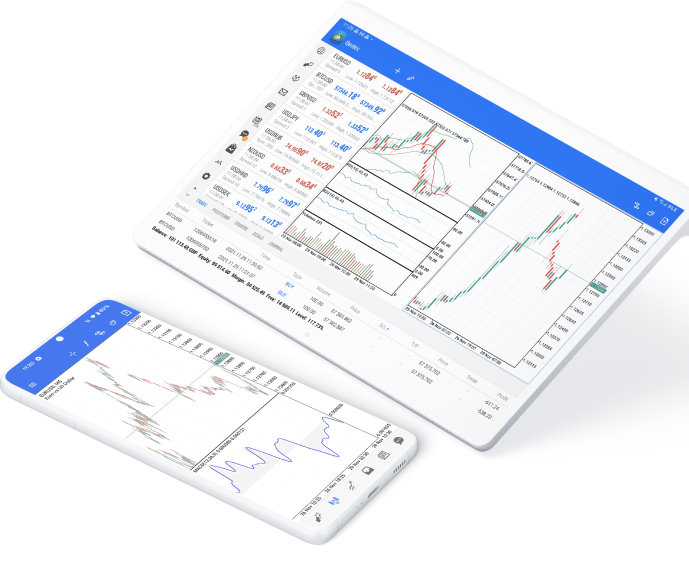
After installation, connect the account to its matching broker server. The server supplies the symbols, prices, account settings and trading permissions displayed in the app.
- Sign in to existing live or demo trading accounts
- View real-time quotes, charts and technical indicators
- Use Market Depth when available for the connected symbol
- Place supported market and pending orders
- Manage positions, pending orders and trading history
- Use broker-configured netting or hedging accounts
- Receive financial news, platform messages and push notifications
- Choose Google Play, AppGallery or the listed APK option for the device
What you need to sign in on mobile
The mobile application and the trading account are separate. Account credentials and the selected broker server determine which account environment is loaded.
- Install the app through the App Store, Google Play, AppGallery or the listed APK package.
- On first launch, select an existing account or create a demo account and confirm the correct broker server.
- Enter account credentials only after verifying the intended server and account environment.
MetaTrader 5 download, installation and login FAQ
Answers about Windows, macOS, Linux, WebTerminal, iOS, Android, broker-server login and the functional differences between MT5 terminals.